
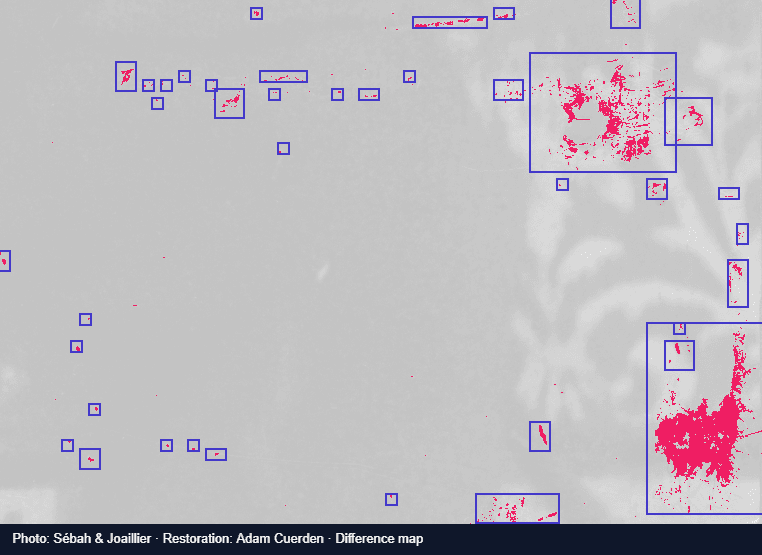
How the image difference checker works
The checker compares the two images pixel by pixel at the first image’s size. For each pixel, it measures how far the colour moved in red, green, and blue. Pixels that moved further than the tolerance are counted as changed.
Highlight paints changed pixels in a strong colour over a faded copy of the first image, so you can see where changes are without losing context. Difference shows the raw colour distance, amplified so that subtle edits become visible. Blink alternates between the two images, which the eye is very good at noticing.
- Choose the original image, then the changed image.
- Start in Highlight with the default tolerance. Scattered speckles usually mean compression noise; raise the tolerance until they disappear.
- Read the summary: the percentage of changed pixels and the number of changed regions, each outlined on the image.
- Switch to Difference or Blink to inspect what changed, then download the difference image if you need to share it.
What people use it for
Any time two files should be identical, or should differ only in one place, a pixel comparison answers the question faster than looking back and forth.
- Design and UI review: spot unintended changes between two exports or screenshots of a page.
- Visual regression testing: compare a baseline screenshot with a new build before you ship.
- Photo retouching: see exactly which areas an edit touched, and check that nothing else moved.
- Documents and scans: find the changed region between two versions of a page, map, or drawing.
- Compression checks: see where a smaller JPG or WEBP has lost detail compared with the original.
- Spot-the-difference puzzles: find every change in seconds, if you want the answer.
Choosing a tolerance
At zero tolerance, any change at all counts, including invisible rounding from saving a file again. PNG screenshots of the same screen usually match exactly, so a low tolerance suits them. JPG and WEBP files rarely match exactly after re-saving; a tolerance of about 10–20% usually hides compression noise while keeping real edits.
Tolerance is the colour distance as a share of the largest possible distance between black and white. It is a practical review control, not a perceptual or colour-managed measurement.
Why alignment matters
A pixel comparison assumes both images show the same scene at the same position. If one image is shifted, rotated, scaled, or cropped, almost every edge registers as a change. That is accurate — the pixels did change — but it hides the edit you were looking for.
Images with different dimensions are stretched to the first image’s size, and the checker warns you. For photos taken at different times, or edits that straighten or crop, use the comparison slider instead: it shows both images in the same frame without treating every shifted edge as a difference.
Use the comparison slider · Compare original and edited photos
Common questions
Is this image difference checker free?
Yes. There is no account or limit on comparisons. Very large images may be slow on older devices because every pixel is compared.
Are my images uploaded?
No. Both images are decoded and compared by your browser on your device. Nothing is sent to a comparison server, and closing the page clears them.
Can it compare images of different sizes?
Yes, but the second image is stretched to the first image’s dimensions, so a size or aspect-ratio change will show up as differences. For a meaningful pixel comparison, export both images at the same size.
Why does almost everything show as changed?
The images are probably not aligned, or one has been recompressed or recoloured. Raise the tolerance to ignore compression noise. If edges are doubled, the images are shifted; use the comparison slider or crossfade instead.
Does it detect changes in transparency?
Transparent areas are compared as they appear over white, so a change in transparency counts when it changes the visible colour.
What are the outlined regions?
Changed pixels close to each other are grouped, and each group is outlined. Isolated specks too small to form a group are still highlighted and counted in the percentage, but are not outlined. One region means a local edit; many regions mean changes spread across the image.
BeforeAfterly is free and needs no account. The site uses analytics; see the privacy policy.