
Renovations
How to Take and Compare Renovation Before and After Photos
A room transformation is easier to understand when the before and after photos share a viewpoint. The most useful work starts before construction: plan repeatable photos, then compare the finished space without letting a new camera angle do the storytelling.
By BeforeAfterly · Practical comparison guide · Published
The practical takeaway
Record the camera position before work begins. Match it for the after photo, then align the images before loading them into the slider.
Worked example · a kitchen renovation
New fittings, a different viewpoint.
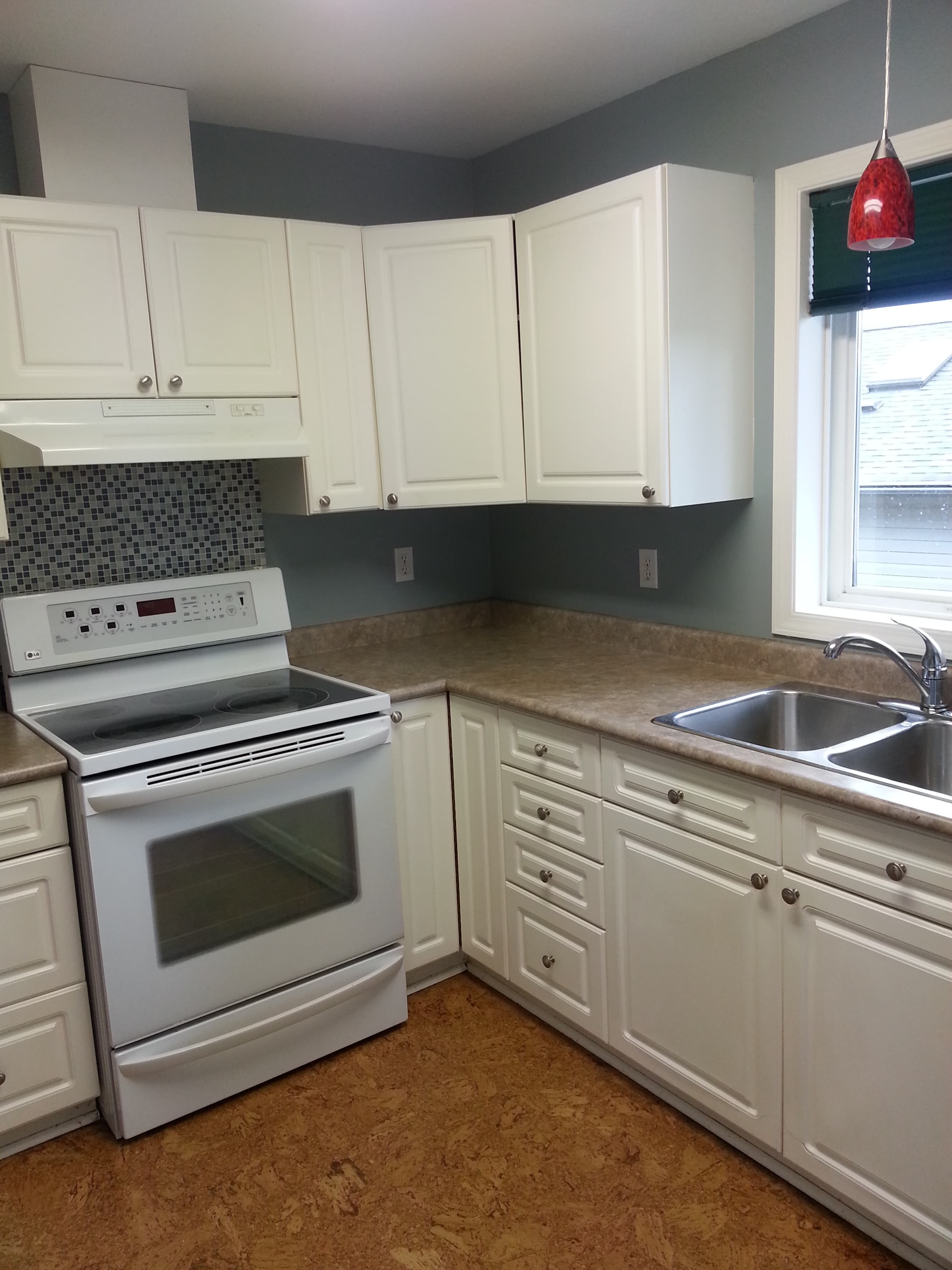
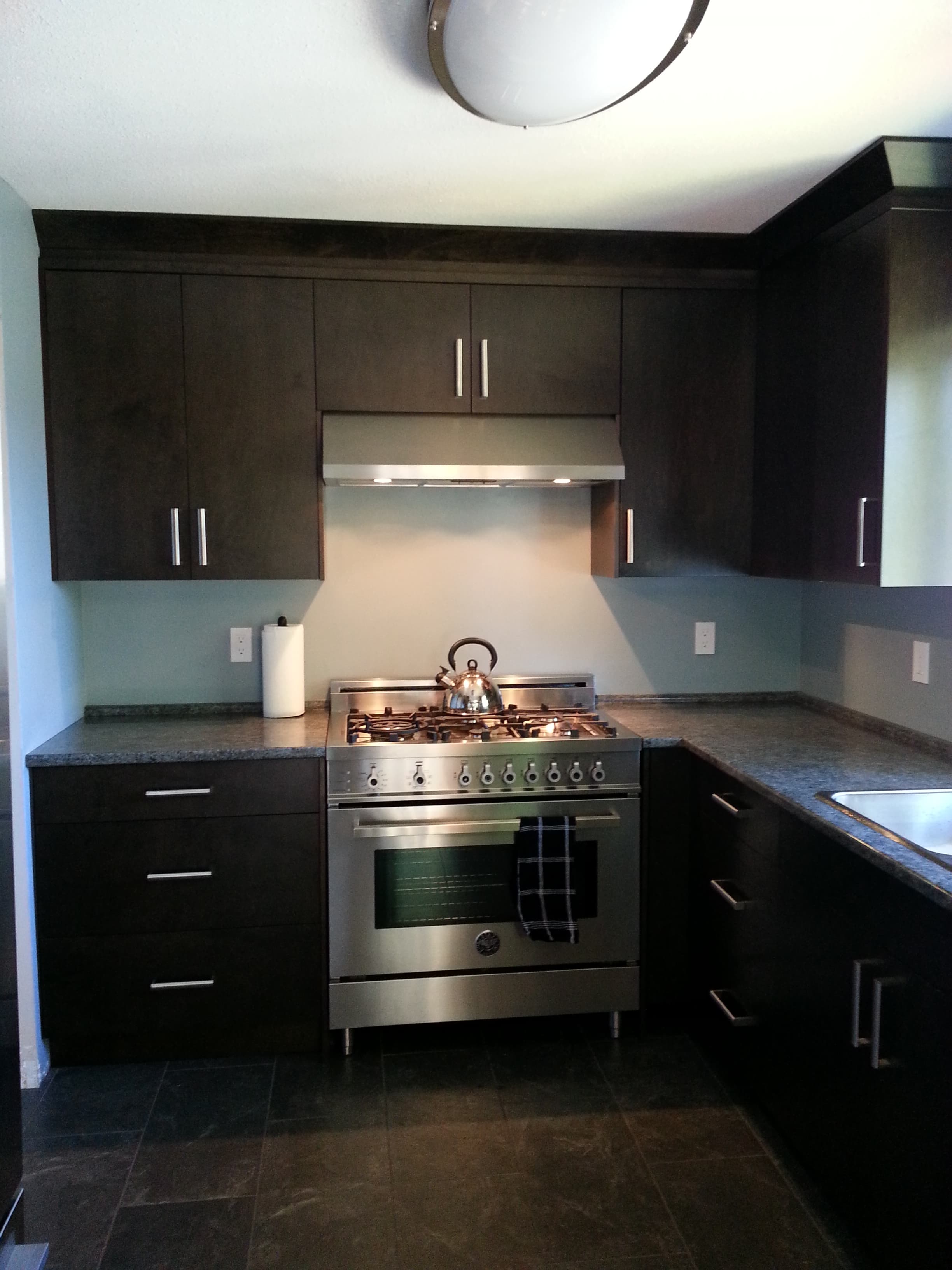
Terri Bateman’s kitchen album documents the room before work, the tear-down, and the finished kitchen. These March and June 2015 photos show new cupboards, a cooker and hood, counters, and flooring. They also show how moving the camera changes a before-and-after comparison.
Build an honest renovation comparison
- Read the endpoints first. The white cupboard fronts and small knobs become dark fronts with long handles; the electric cooker becomes a gas cooker with a separate metal hood. Describe these visible changes rather than judging the project only by the overall color.
- Move the Split control below. The before view looks into the corner; the after view faces the cooker more directly. A countertop that jumps at the divider can reflect perspective as well as new work. This pair cannot prove a change in room size or cabinet dimensions.
- Check light separately from materials. The after photo has the hood lights on, different framing, and a different exposure. Darker cupboards and flooring are visible, but the photos alone do not establish that the room became brighter or darker in use.
- For your next project, record the camera position, height, lens, and the window and wall corner in the before frame. Return to that position for the finished photo and keep a wider view alongside close-ups of the details.
- Download these inputs to practice. Load both in the tool, use the dates as PNG labels, and retain Terri Bateman’s credit, the source links, and the CC BY 2.0 license when sharing. A still can explain finishes; a matched camera position makes a slider easier to read.
The live frame crops to fit. The input photos above show the full views.
Photos: Terri Bateman (terri_bateman). Before source · After source · Project album · CC BY 2.0. Inputs are unchanged; this page generates smaller previews and a comparison divider. No endorsement by the photographer is implied.
Plan the before photo so you can repeat it
Choose a viewpoint that shows the main change: a doorway for a whole room, the opposite wall for a kitchen, or a stable position across the street for an exterior. Take a wide establishing photo and additional detail photos rather than expecting one frame to explain everything.
Record the camera height, distance to a fixed wall or doorway, lens or zoom setting, and whether the camera is in portrait or landscape orientation. A quick note and a reference photo of the camera position make it much easier to return to the same spot after work is complete.
- Use fixed architectural features as reference points.
- Keep the camera level when you want vertical walls to line up.
- Record the focal length or phone zoom setting.
- Save an uncropped original before editing.
Match framing and lighting after the work
Return to the recorded position and use the before photo as a framing reference. Match the corners of the room, windows, door frames, and floor lines. If furniture now blocks the old viewpoint, explain that limitation instead of forcing an inaccurate match.
Try to photograph at a similar time of day with similar artificial lighting. A darker before photo and a brightly exposed after photo may exaggerate the transformation. If the lighting upgrade is part of the project, explain it in the caption so viewers can distinguish construction changes from lighting changes.
Keep the presentation accurate. Avoid removing defects from the after image in a way that changes what was built. Obtain permission to publish property images and check for faces, addresses, documents, or other identifying details in the frame.
Align the photos before comparing
Use your photo editor to crop both images to the same aspect ratio and align fixed features. Perspective correction can help when one camera was tilted, but heavy corrections may stretch the image. If the viewpoints are substantially different, separate photos may explain the project better than an overlay.
BeforeAfterly does not automatically align rooms, straighten walls, or correct perspective. It displays the prepared files in a shared frame. Export matching PNG, JPG, or WEBP copies and select the before image followed by the after image.
Choose the direction that tells the story
Start with Split and drag across the room. Horizontal orientation moves a vertical divider from left to right; vertical orientation moves a horizontal divider from top to bottom. A top-to-bottom movement can work well for floor changes or tall façades.
Use Crossfade as an alignment check. If unchanged window frames or corners appear to jump, the photos are not well aligned. Correct them in your editor, or acknowledge the framing difference when presenting the comparison.
For a walkthrough, set a slow autoplay speed and use Bounce so viewers see the transition in both directions. Pause on the features you want to explain, such as a removed wall, a new surface, or a changed room layout.
Add context when you share the result
Download a PNG at the chosen position, with clear Before and After labels. Include the room, what changed, and the dates the photographs were taken in your caption. For an interactive portfolio, host both photos and generate an embed from their public HTTPS URLs. BeforeAfterly does not upload your local files or create a hosted image link for them.
For a portfolio or case study, add a short explanation of the design problem and how the completed work solves it. Photos demonstrate visible changes; they do not establish hidden construction quality, costs, or a change in property value. Keep those claims separate and support them with project records.
Make a stacked before and after image · Embed the slider on your website
Common questions
Can I compare photos taken from different angles?
You can load them, but a slider works best with matching viewpoints. Align and crop the photos beforehand, or show separate images when the perspectives cannot be matched.
Can I use a top-to-bottom comparison?
Yes. Choose Vertical in the tool. The horizontal divider then moves from the top to the bottom of the frame.
Does BeforeAfterly publish property photos?
Loaded local files stay in the browser. You choose whether to download and publish a PNG. An embed uses public images you already host; the comparison tool does not host your local files.
Put it into practice.
Load your before and after images and try all three comparison modes. Free, with no sign-up.
Compare your images