
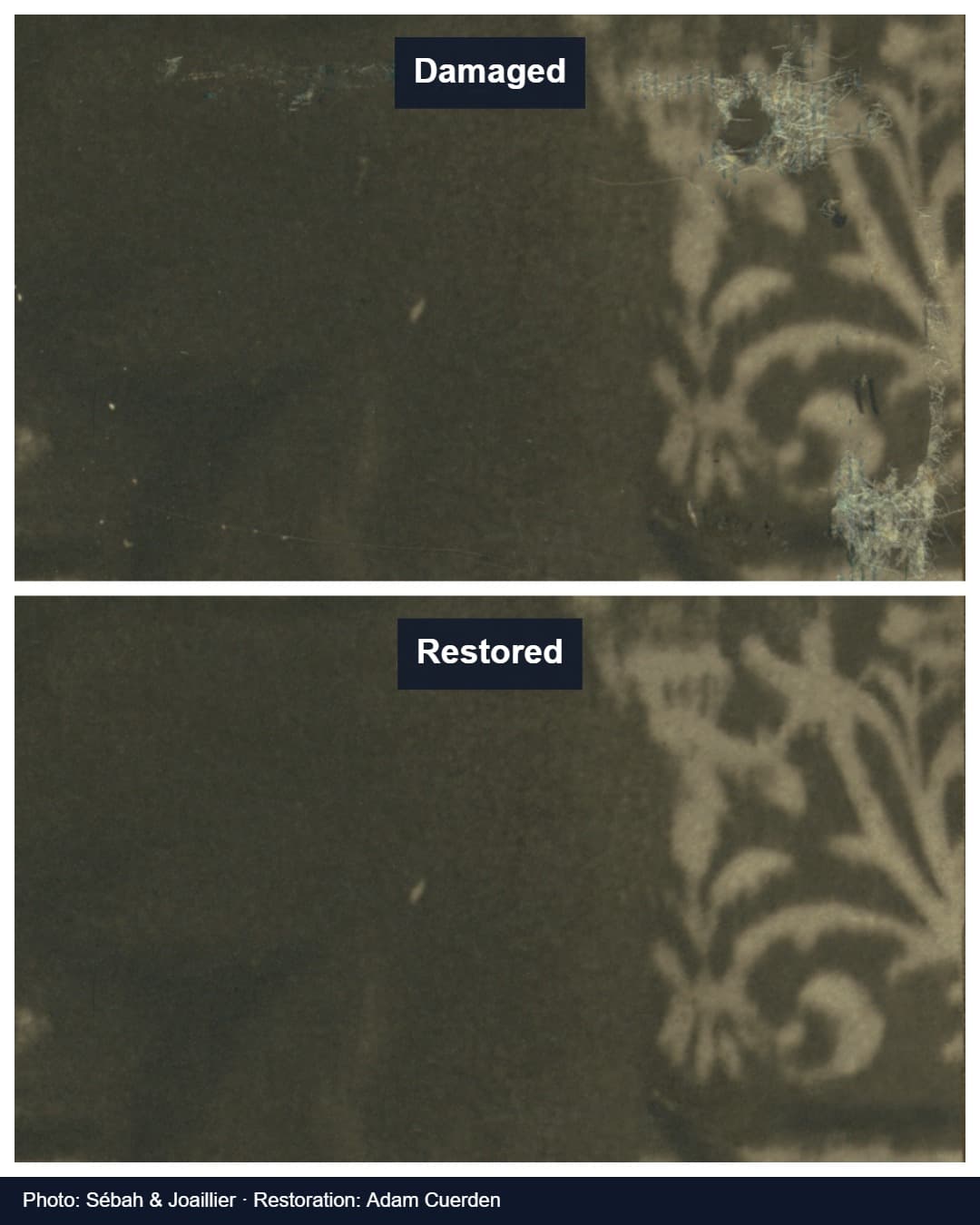
How to make a before and after photo
A side-by-side image shows both complete moments at once, so it works anywhere a still image works: a social post, a listing, a quote, or a slide. The maker above builds that image in your browser.
- Choose your before photo, then your after photo. You can drop a file onto either box.
- Pick Side by side for portrait or square subjects, or Top and bottom for wide scenes such as rooms, gardens, and cars.
- Choose a canvas size for where you will post it. Match first image keeps your photo’s own proportions.
- Use Fill and crop for a clean, gap-free result, then move each crop position slider so the subject sits in the same place in both panels. Use Show whole image if nothing may be cut off.
- Edit the labels — for example “Week 1” and “Week 12”, or “Original” and “Retouched” — and choose spacing and background colour.
- Download a PNG for the sharpest result, or a JPG for a smaller file.
Which size should you choose?
Platforms crop and resize uploads, so starting at the shape they display avoids surprises. These are common starting points rather than platform rules; check the current guidance of the place you publish if exact framing matters.
| Canvas size | Good for | Best layout |
|---|---|---|
| Square · 1080 × 1080 | Feed posts, profile grids, marketplace listings | Side by side for portraits; top and bottom for landscapes |
| Portrait · 1080 × 1350 | Instagram and Facebook feed posts that take more screen height | Top and bottom for wide photos; side by side for tall subjects |
| Story or Reel · 1080 × 1920 | Stories, Reels, TikTok, and phone wallpapers | Top and bottom, with labels away from on-screen buttons |
| Landscape · 1920 × 1080 | Slides, websites, YouTube thumbnails, and email | Side by side |
| Pinterest pin · 1000 × 1500 | Pins and tall blog graphics | Top and bottom |
| Match first image | Portfolios and archives where the original proportions matter | Either; nothing is enlarged |
Side by side or top and bottom?
Each panel takes half of the canvas. In a side-by-side layout, each half is narrow and tall; in a stacked layout, each half is wide and short. Choose the layout whose panel shape is closest to your photos, so cropping removes as little as possible.
A full-length body or a face usually suits side by side on a square or portrait canvas. A kitchen, façade, lawn, or car usually suits top and bottom on a portrait or story canvas. If a panel cuts off something important, switch layout, use the crop position sliders, or choose Show whole image.
Make the comparison believable
Viewers trust a before and after when the only thing that changes is the result. Differences in light, angle, distance, or editing invite doubt, even when the result is real.
- Shoot from the same spot, height, and distance, with the same lens or zoom.
- Use similar light. Avoid comparing a dim, flash-lit before with a sunny after.
- Apply the same colour treatment to both photos, or none to either.
- Line up the subject in both panels with the crop position sliders.
- Label honestly. Add dates or durations where they matter, and do not imply a result that the photos do not show.
- Credit photographers and get permission from people shown, especially clients.
Side-by-side image or comparison slider?
A side-by-side image is easiest to share because any app can show it. A slider shows both photos in the same frame and lets the viewer move a divider, which reveals small changes that are hard to see in two separate panels — retouching, tone, texture, or alignment.
Use this maker for a post or a quote, and use the comparison slider to inspect an edit, present live, or embed an interactive comparison on your website.
Common questions
Is the before and after photo maker free?
Yes. There is no account, trial, or paid tier. The download has no watermark unless you tick Add BeforeAfterly credit.
Are my photos uploaded?
No. The image is assembled with your browser’s canvas on your device, and the download is created locally. Reloading or closing the page clears the photos.
Does it work on iPhone and Android?
Yes, in a current mobile browser such as Safari or Chrome. Choose each photo from your library, adjust the settings, and download. On iPhone, the downloaded image can be saved to Photos from the share sheet or the Files app.
Why is part of my photo cut off?
Fill and crop scales each photo to cover its whole panel, so anything outside the panel’s shape is trimmed. Move the crop position slider, change the layout or canvas size, or choose Show whole image to keep every pixel.
Can I add more than two photos?
Not yet. The maker creates a two-panel image. For a series, make several pairs that share the same first photo, or compare the steps one pair at a time with the slider.
PNG or JPG?
PNG keeps every pixel without compression artefacts and is best for labels and screenshots. JPG files are smaller and are fine for photo-only posts. Social platforms usually recompress uploads either way.
BeforeAfterly is free and needs no account. The site uses analytics; see the privacy policy.