Skip to content

✨ Try it now — Free & Private

Before and after image comparison.

Drag, reveal, or blend two images. Download a PNG or present live. Free, with no sign-up. Your image files stay in your browser.

Your turn

Bring two images.

An original and an edit, or a space before and after. Your files stay in this browser.

📸

Drag & drop 2+ images

PNGJPGWEBP
🔒Your images never leave your device

Real photo restoration. No files needed.

Upload at least two images above to pick your Before and After pair.

See what changed.

Photo restoration · drag to compare

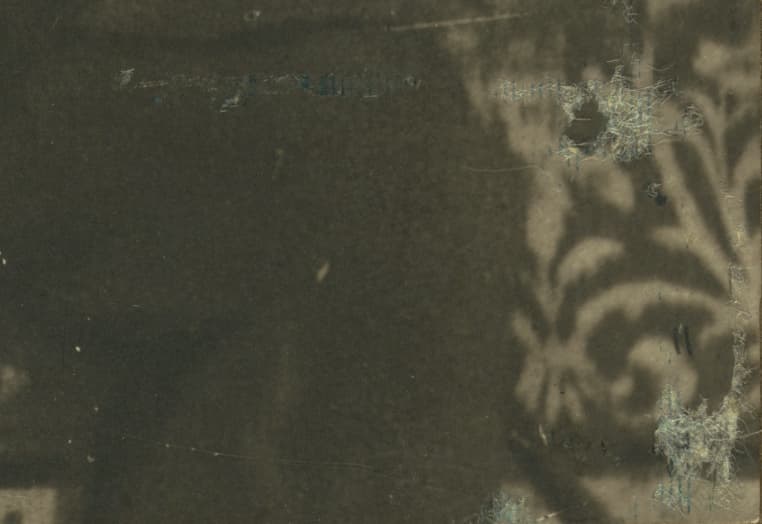
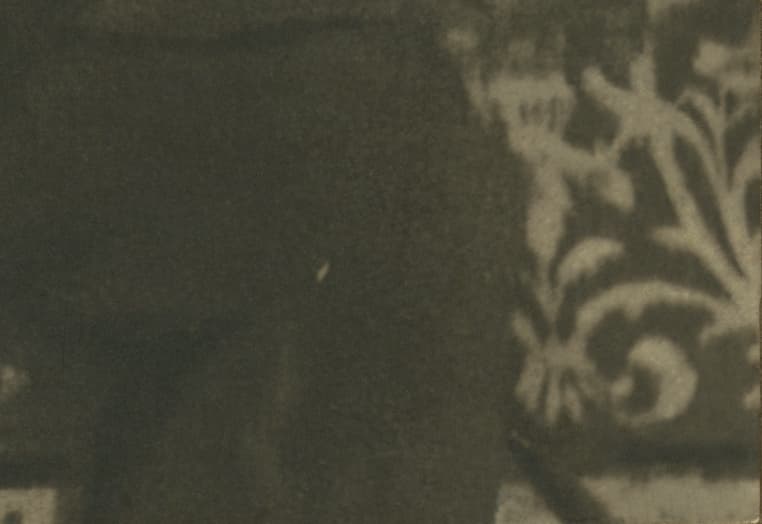
Drag across the scratches to inspect Adam Cuerden’s restoration.

LeftRight
Before
After
Advanced playback settings
Speed30%/s

Sample: scratches repaired in a detail from a c. 1920 photograph of Sultan Mehmed VI. Photo by Sébah & Joaillier (public domain); restoration by Adam Cuerden, reused with attribution. Original source · Restored source & reuse terms.

Keep the comparison

Created on your device. No image upload.

Saves this position, mode, and orientation. Keeps the first image’s proportions; smaller originals are not enlarged.

Sample inputs are 762 × 524 pixels. Their required photo credit stays in the PNG.

Embed a comparison on your website

Use two public image URLs from your own website or image host. Local files stay on your device; this does not upload or publish them. The viewer loads the images from their hosts.

Uses the current mode and orientation. Image URLs are visible in the embed code; use publicly shareable URLs, without private access tokens.

⌨️ Drag the handle or use arrow keys•Press Space to play/pause

More free before and after tools

Side by side

Before and after photo maker

Put two photos side by side or stacked, add labels, and download a post-ready image.

Animation

Before and after GIF maker

Animate a wipe or crossfade and download a looping GIF or a video.

Pixel comparison

Image difference checker

Highlight every changed pixel between two versions and see how much changed.

Embed

Add a slider to your website

Free embed code for WordPress, Shopify, Squarespace, Wix, Webflow, and HTML.

Three quick steps

Get started in seconds

1

Drop images in

📁 Drag in any PNG, JPG, or WEBP files. BeforeAfterly runs entirely in your browser, so files never leave your device.

2

Select before + after

🎨 Tap two thumbnails to define before/after. Pick Reveal, Split, or Crossfade modes and fine-tune with orientation, presets, or autoplay controls.

3

Share or present

🚀 Download a PNG, embed, or present live. Keyboard shortcuts and autoplay make it easy to showcase design, photo, or skincare progress in seconds.

🔒

Private & Secure Image Comparison

BeforeAfterly is a privacy-focused before/after image slider that processes everything locally in your browser. No sign-up required, no image uploads to servers. Your photos stay completely private on your device—perfect for confidential client work, personal transformations, or sensitive property photos.

All image processing happens client-side using modern web technologies. The site loads its assets and analytics over the network; the comparison tool does not send your image files to our servers. Delete comparisons anytime, and all temporary previews are automatically cleared when you close the browser.

✓

No uploads: Images never leave your device

✓

No account required: Start comparing immediately

✓

Local previews: Image processing happens in your browser

Before and after photos for every kind of project

Practical guides for taking and comparing photos that show the change honestly

From the comparison desk

Real photos. A closer look.

Follow two worked examples, download their inputs, and see what each comparison can tell you.

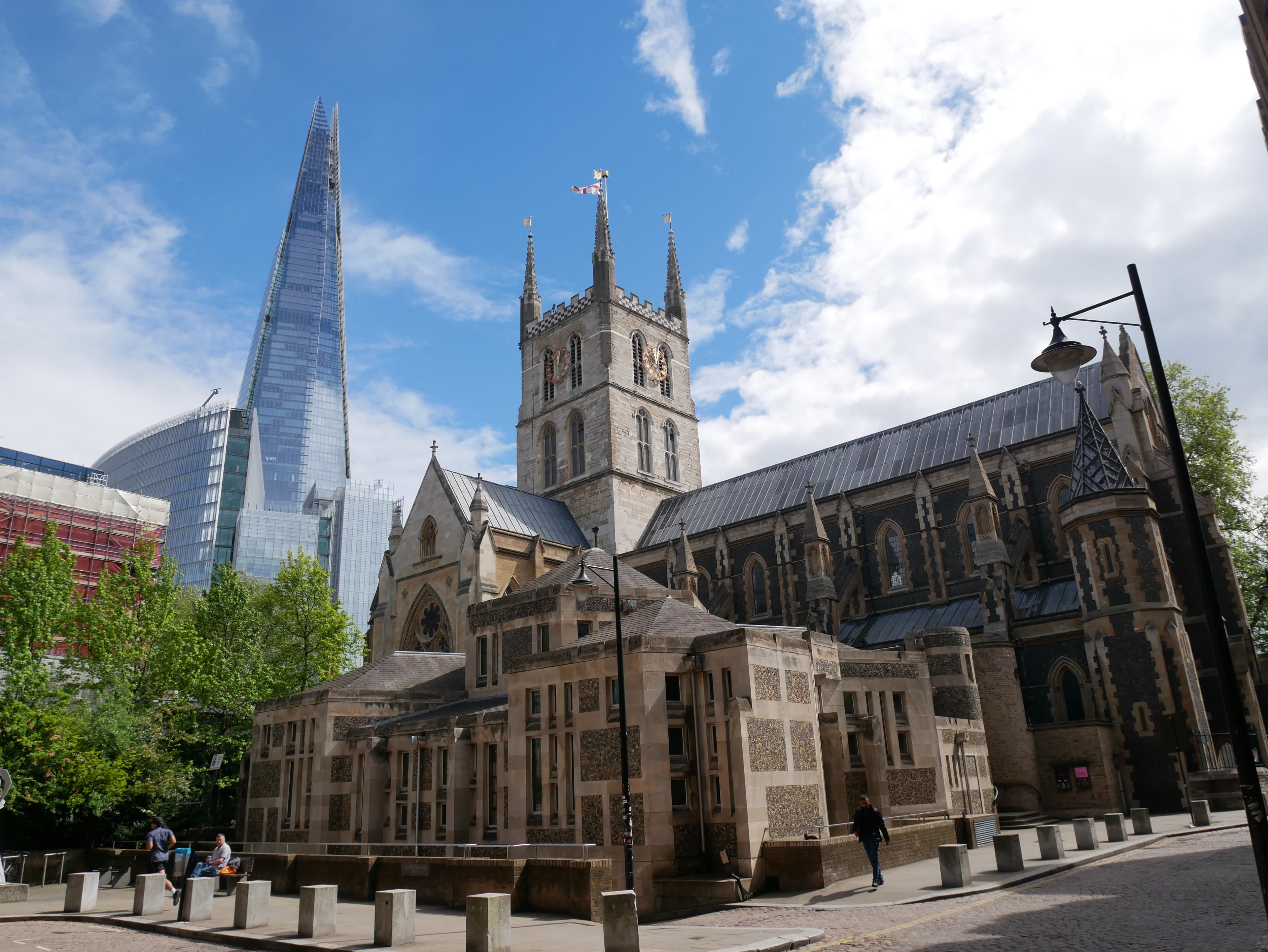
Southwark Cathedral before the exposure and geometry edit
Original
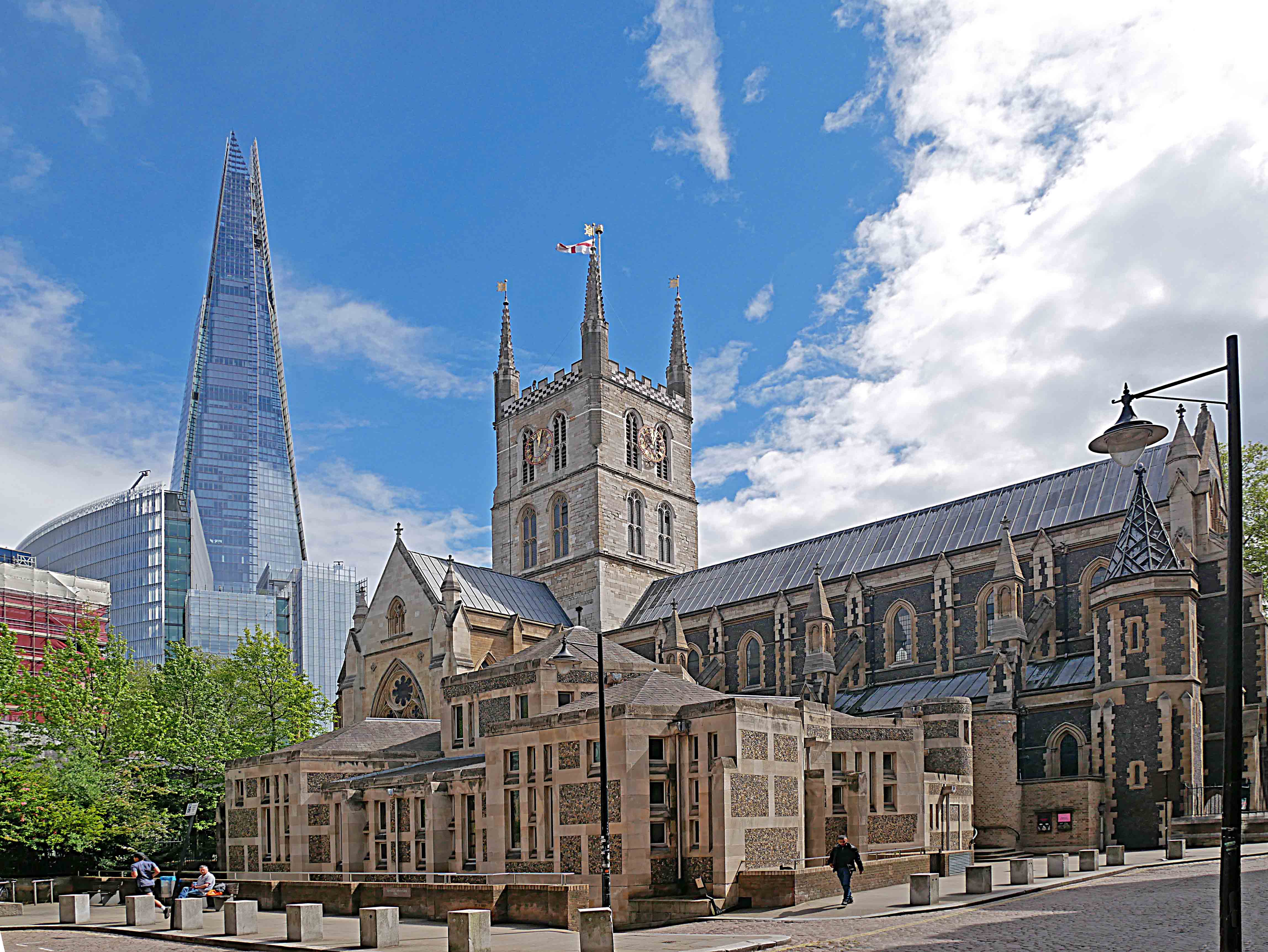
Southwark Cathedral after the exposure and geometry edit
Edited

Photo editing

Brighter stonework, shifted edges.

Review a published cathedral edit. Crossfade exposes the effect of straightening; matching pixel dimensions alone does not align the landmarks.

Follow the photo-editing walkthrough

Photo: Ethan Doyle White. Edit: RCraig09. Source · CC BY-SA 4.0. Resized previews.

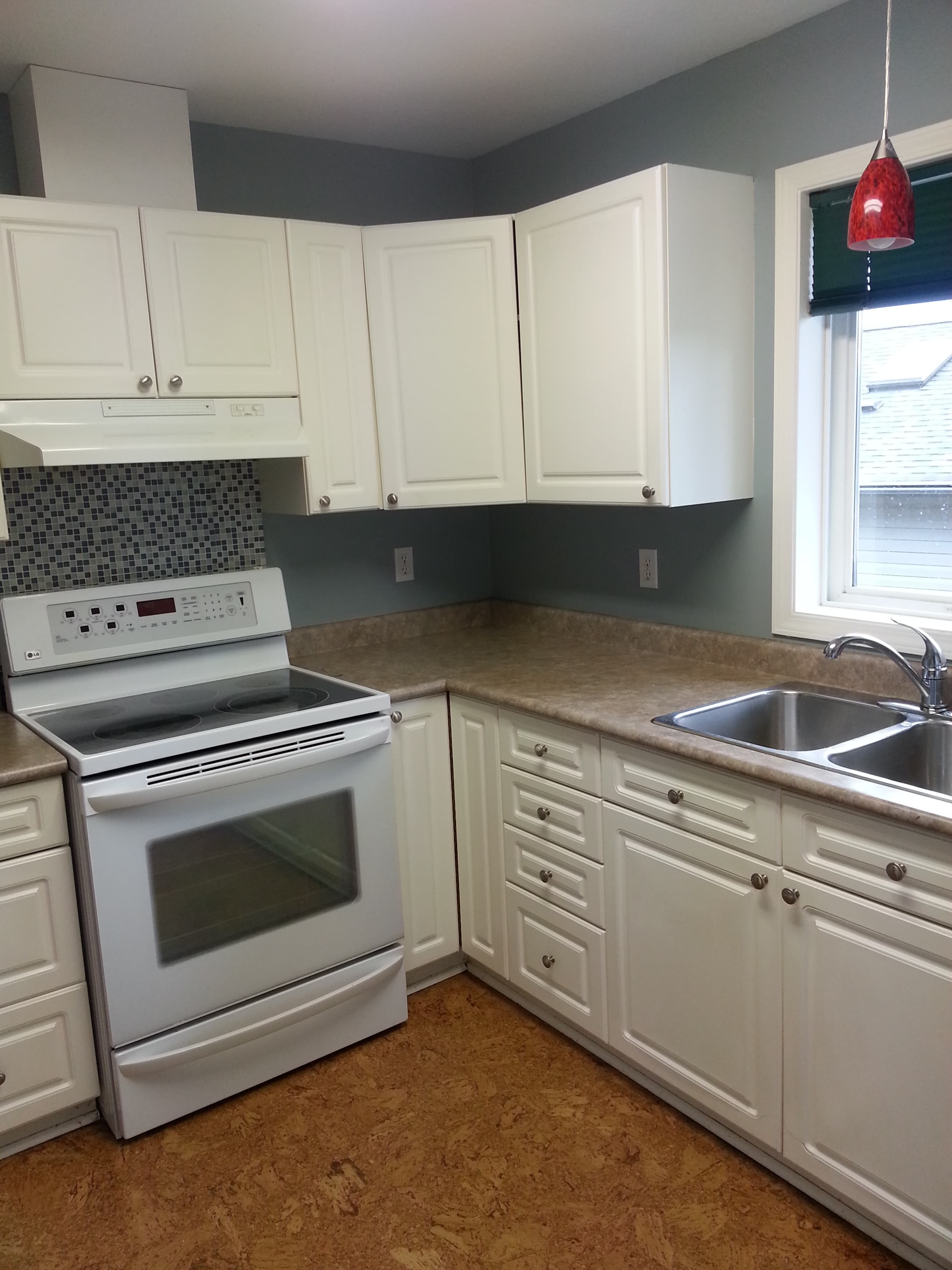
Kitchen before renovation with white cupboards, an electric cooker, mosaic backsplash, and cork flooring
Before · 15 March 2015
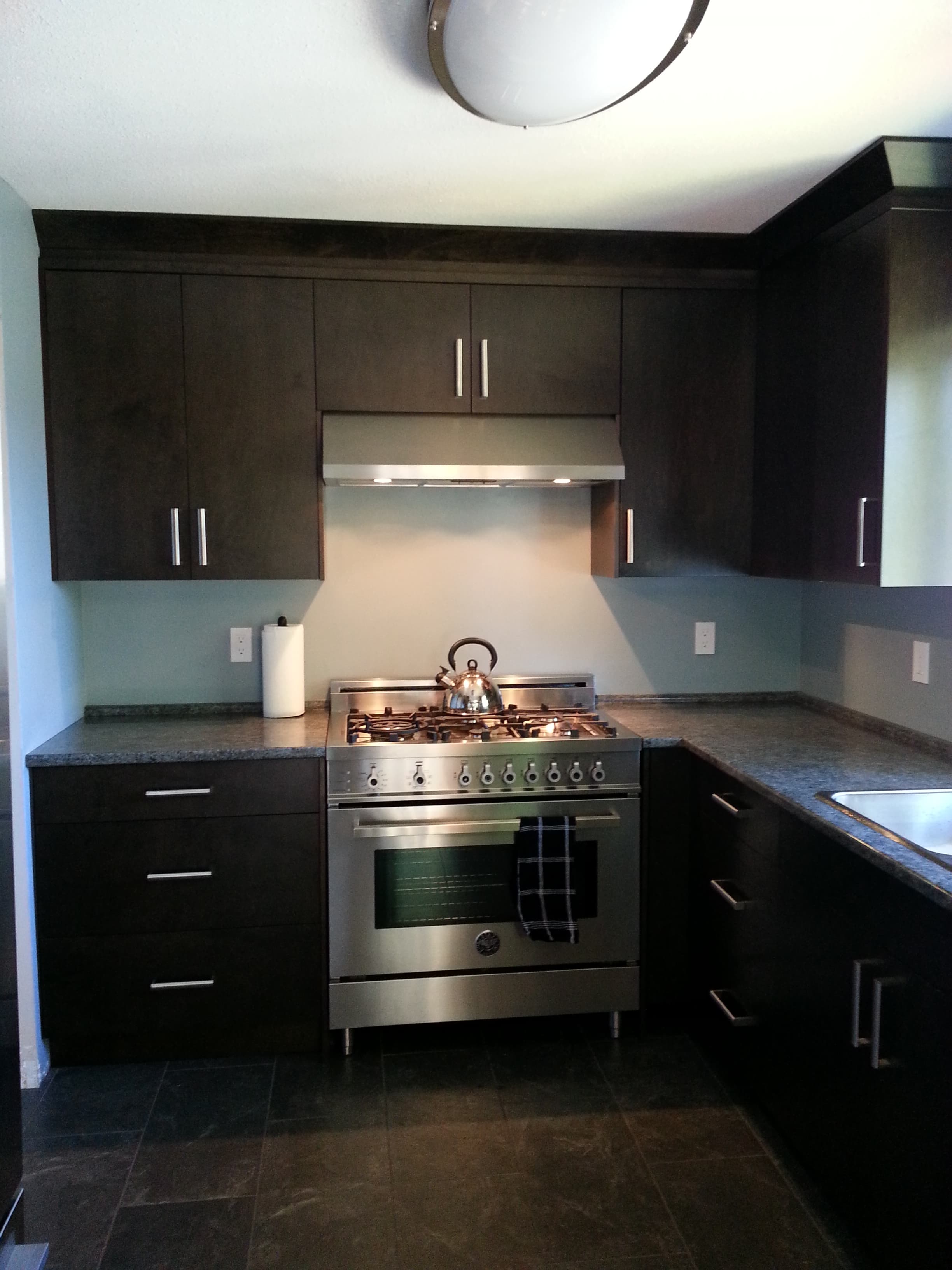
Renovated kitchen with dark cupboards, long drawer handles, a gas cooker, metal hood, and dark floor tiles
After · 13 June 2015

Renovation

New fittings, a different viewpoint.

Follow a real kitchen renovation. Identify the new finishes and fittings, then account for the camera and lighting changes before drawing conclusions.

Follow the renovation walkthrough

Photos: Terri Bateman. Before · After · CC BY 2.0. Resized previews.

Learn to show the change

Make a better before & after.

All comparison guides
Start here01

How to Make Before and After Photos

Make a clear before and after photo comparison: prepare matching images, choose a slider or crossfade, and capture the result for a presentation.

Read the guide
Photo editing02

How to Compare Original and Edited Photos

Compare original and edited photos with a before and after slider. Check retouching, color changes, sharpening, and compression using matching exports.

Read the guide
Renovations03

How to Take and Compare Renovation Before and After Photos

Plan consistent renovation before and after photos: match camera position, framing, and light, then use a slider to explain the changes to a room or property.

Read the guide
Comparison techniques04

Reveal vs Split vs Crossfade: Which Comparison Mode to Use?

Understand reveal, split, and crossfade image comparisons. Choose a mode for inspecting photo edits, explaining renovations, or presenting visual changes.

Read the guide
Websites05

How to Add a Before and After Slider to Your Website

Embed an interactive before and after image slider on WordPress, Shopify, Squarespace, Wix, Webflow, or plain HTML. Free embed code, no plugin, and no account.

Read the guide
Fitness06

How to Take Progress Photos That Actually Show Change

Take consistent fitness and body progress photos: the same light, pose, distance, and time of day, then compare them side by side or with a slider. Private and free.

Read the guide
Skincare & aesthetics07

Skincare and Aesthetics Before and After Photos: A Consistent Method

Take consistent skincare, dermatology, and aesthetic treatment before and after photos: standard views, fixed lighting, consent, and honest presentation without filters.

Read the guide
Car detailing08

Car Detailing Before and After Photos: 50/50 Shots That Sell

Photograph paint correction, interiors, wheels, and headlights for honest car detailing before and after photos, including 50/50 split shots and slider comparisons.

Read the guide
Gardens & landscaping09

Garden and Landscaping Before and After Photos

Take garden and landscaping before and after photos that compare fairly: fixed photo points, matching seasons and light, and wide layouts that show the whole space.

Read the guide
Photo restoration10

Photo Restoration Before and After: Show the Repair Honestly

Present old photo restoration and repair work: scan the original, keep the framing identical, highlight repaired damage with a difference map, and credit the source.

Read the guide
Hair & beauty11

Hair Salon Before and After Photos: Colour, Cuts, and Styling

Take hair before and after photos with true colour: consistent light, the same angles, white balance, and honest editing for salon portfolios and social media.

Read the guide
Web & UI design12

Website Redesign Before and After: Screenshots That Compare Fairly

Capture and compare website and app redesigns: matching screenshots, the same viewport and content, archived old versions, and pixel checks for unintended changes.

Read the guide
Real estate13

Real Estate Staging Before and After Photos (Including Virtual Staging)

Show home staging and virtual staging honestly: matching angles, consistent light, labels on virtually staged photos, and no hiding of permanent features.

Read the guide

Frequently Asked Questions

Everything you need to know about our image comparison tool

How do I compare two images online?

Load two PNG, JPG, or WEBP files, select the before image followed by the after image, and drag the comparison slider. Choose Split or Reveal for a hard edge, or Crossfade to blend between versions.

Do you upload my images anywhere?

No. The image comparison tool reads files locally and keeps temporary previews in your browser memory. Remove all, reloading, or closing the page clears the previews. The site uses analytics; see the privacy policy for details.

What files work best?

Use PNG, JPG, or WEBP images with matching crops and aspect ratios. Image size is limited by your device’s memory. Large files can take longer to preview. The tool does not automatically align or edit your images.

Can I download a PNG, GIF, or video?

Yes, as a PNG. Choose Download PNG to save the current slider position with optional labels. For a side-by-side or top-and-bottom image, use the before and after photo maker. For an animated GIF or a video, use the before and after GIF maker.

Can I find the differences between two images?

Yes. The image difference checker highlights every changed pixel, reports the share of the image that changed, and outlines the changed area. Both images are compared in your browser.

Is BeforeAfterly free to use?

Yes. You can compare images without creating an account or paying. Image files are processed locally in your browser.

Can I use it for client presentations?

Yes. Use the slider for a live review, or use autoplay with Loop, Bounce, or Once. Download a labeled PNG or capture your screen to save an animated presentation. Keep the original files because loaded images are not saved between sessions.

Read our privacy policy for details on image handling and analytics.