
Photo editing
How to Compare Original and Edited Photos
An edited photo can look convincing on its own while hiding a color shift, a lost detail, or an overworked edge. Comparing it with the original in the same frame makes those changes easier to see. Use this workflow for retouching reviews, preset tests, and client feedback.
By BeforeAfterly · Practical comparison guide · Published
The practical takeaway
Export a matched original and edit. Inspect edges in Split, then use Crossfade to spot changes in tone and color.
Worked example · one photo, two versions
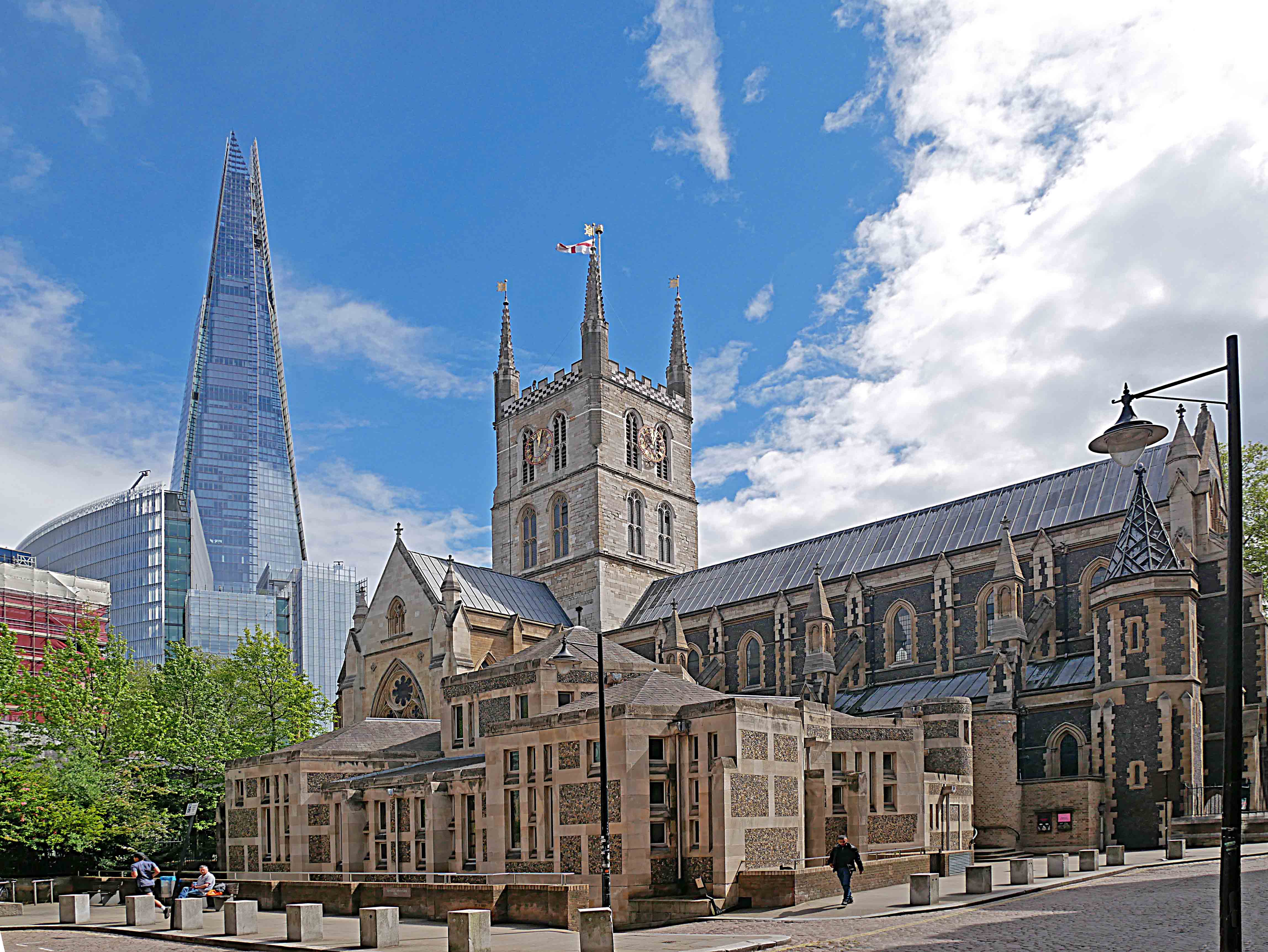
Brighter stonework, shifted edges.
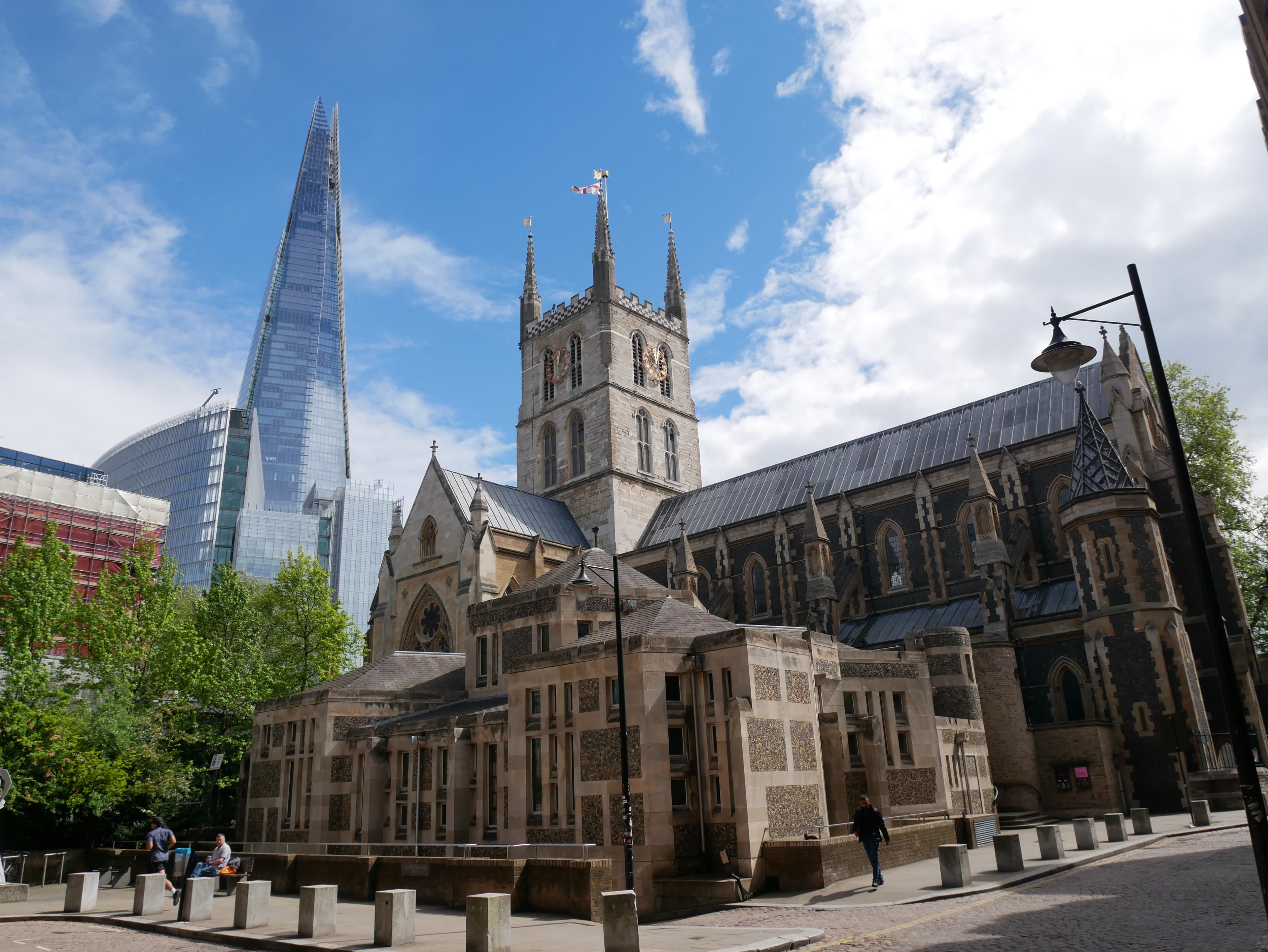
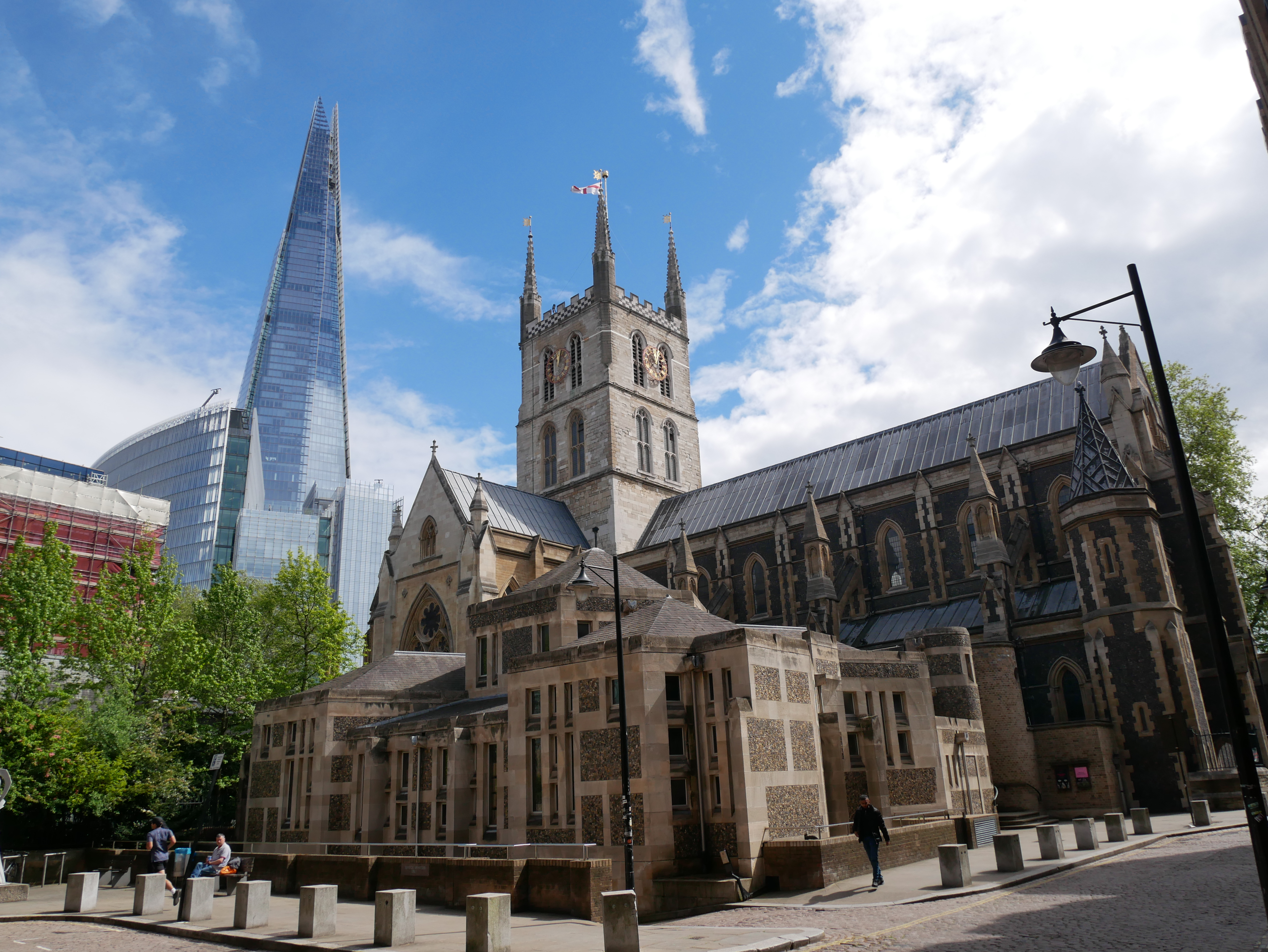
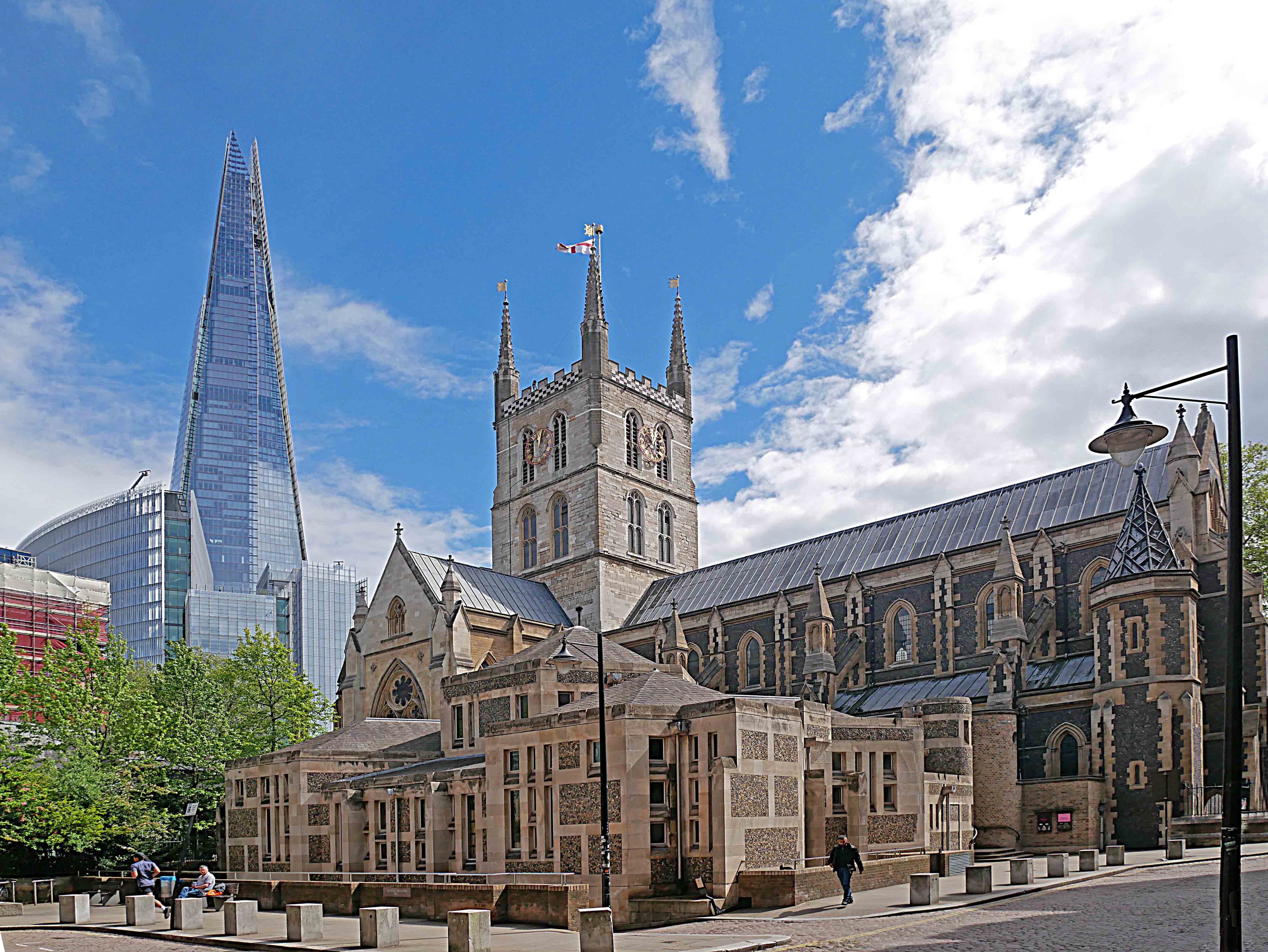
This Southwark Cathedral photo has an original and a published edit. The editor describes straightening, lightening, and slight sharpening. The same scene and pixel dimensions make the pair useful for review, but straightening has moved the landmarks.
Review the change
- Inspect each endpoint. The edit lifts the cathedral’s shadows; check whether the stone still looks natural and the bright clouds retain detail.
- Move the Crossfade control below toward the middle. Watch the clock tower and the Shard: their doubled outlines reveal the changed geometry, rather than a retouching defect.
- For a tone-only review, export an ungraded version with the same straightening and crop as the edit. Matching pixel dimensions alone does not align a pair.
- To present this review, download both inputs, load them into the tool, and label the PNG “Original” and “Edited”. Include the image credit and license when sharing it.
Photo: Ethan Doyle White. Edit: RCraig09. Source and version history · CC BY-SA 4.0. Smaller previews are generated for this page. Credit both creators, link the license, and identify changes when reusing the images; adapted outputs retain this license. The authors do not endorse this tool.
.jpg)
Export a fair pair from your editor
Export the original and the edit at the same dimensions and with the same crop. If your workflow uses Lightroom, Photoshop, or another editor, keep output color settings consistent between the two exports. Otherwise, you may be comparing export settings as well as editing decisions.
Name the files clearly, such as portrait-original.jpg and portrait-retouched.jpg. Load both into BeforeAfterly and select the original first. You can also load multiple edited versions and select each one against the same original to review different approaches.
The browser preview is useful for visual review, but it is not a calibrated color-proofing tool or a pixel-difference measurement. For print delivery or exact quality checks, review the original-resolution files in your editing software as well.
Check retouching with a moving divider
Choose Split and move the divider over hair, skin texture, clothing edges, and the background. Look for repeated textures, halos, abrupt transitions, or a subject outline that has changed unintentionally. Stop on an area rather than sweeping back and forth too quickly.
Use the Left, Middle, and Right presets to examine the endpoints and a balanced comparison. The endpoints show a single version, which helps you tell whether a visible edge is in the image or comes from the comparison divider.
- Inspect hair and fine edges against contrasting backgrounds.
- Check that texture remains consistent across retouched areas.
- Look for changes outside the area you intended to edit.
- Repeat the check with the divider in vertical orientation.
Use Crossfade for color and exposure changes
Crossfade gradually blends the edit over the original. Move from 0% to 100% while watching neutral surfaces, skin tones, shadows, and bright areas. A large brightness change can be easier to notice through blending than through a hard dividing line.
Keep in mind that the middle of a crossfade is a mixture, not a third export. Judge the final edit at the endpoint. If the subject appears to double or shift while blending, check whether the two files have different crops or alignment.
Compare sharpening and compressed versions carefully
For a compression test, create the versions from one source and preserve the same pixel dimensions. A version resized to half the width is testing resolution as well as compression. Make that distinction explicit when presenting the comparison.
The tool scales the images to fit the available screen, so tiny artifacts may be hidden by browser resizing. Inspect the files at 100% in your editor before deciding a compressed export is suitable. Use the slider to communicate the visible difference, rather than to claim an exact quality score.
Turn the comparison into useful feedback
Describe the goal of the edit before starting the review: for example, reducing a background distraction while keeping the subject natural. Show the full result, then pause on two or three details. This gives the viewer a reason to care about each change.
Present the browser live, or download a PNG with custom labels and optional BeforeAfterly credit. For an interactive portfolio, use Embed with two public image URLs that you already host. Local files do not become public sharing links. For private client work, remove loaded images when you finish and consult the privacy policy for information about site analytics.
Common questions
Does BeforeAfterly edit or retouch the images?
No. It previews two existing files so you can compare them. Crop, align, retouch, and export the files in your photo editor first.
Can I compare several edits to one original?
Yes. Load multiple files, then choose the original and one edit from the gallery. Clear the selection to choose another pair.
Can BeforeAfterly measure how much an image changed?
The slider is for visual comparison. The image difference checker highlights changed pixels and reports the share of the image that changed at a chosen tolerance. It is a review aid, not a perceptual quality score.
Put it into practice.
Load your before and after images and try all three comparison modes. Free, with no sign-up.
Compare your images